Image 2.6
Image 2.6 helps you make and fix pictures with AI. Write what you want in plain words to create a new image, or upload a photo and point to the spots you want changed. You can also add a clear PNG overlay—sketches, circles, arrows, or color hints—so the model knows where and how to edit. Text and markup work together for sharper product shots, posters, and local changes.
Try the demo
See What You Can Create
Images (Optional)
Choose a demoAspect Ratio
Prompt
Click here to get started
What is Image 2.6?
Image 2.6 is an AI model for making and editing pictures, and it follows Image 2.5 in the same family. Write a short prompt to create something new, or upload a photo and say what should change. You can also attach a transparent PNG with simple marks—loops, arrows, or color swatches—so the edit targets the right place. Together, words and markup help product shots, posters, and small fixes land closer to what you had in mind.
- Sketches Mark the SpotLayer a clear PNG on top of your image with circles, boxes, or arrows. Image 2.6 reads where those marks sit and what color they use, so you spend less time describing pixels in words.
- Text Sets the GoalYour prompt still names the subject, mood, and finish you want. The model blends that wording with your overlay, which helps swaps, signage, and tidy layouts stay readable.
- Start From Your PhotoUpload a shot, sketch over the part to change, and describe the outcome. Handy for new backgrounds, relit products, room tweaks, or turning a rough outline into a finished object.
Why Use Image 2.6 for Visual Work
Three reasons markup-guided editing helps product shots, posters, and photo fixes feel more precise than text alone:
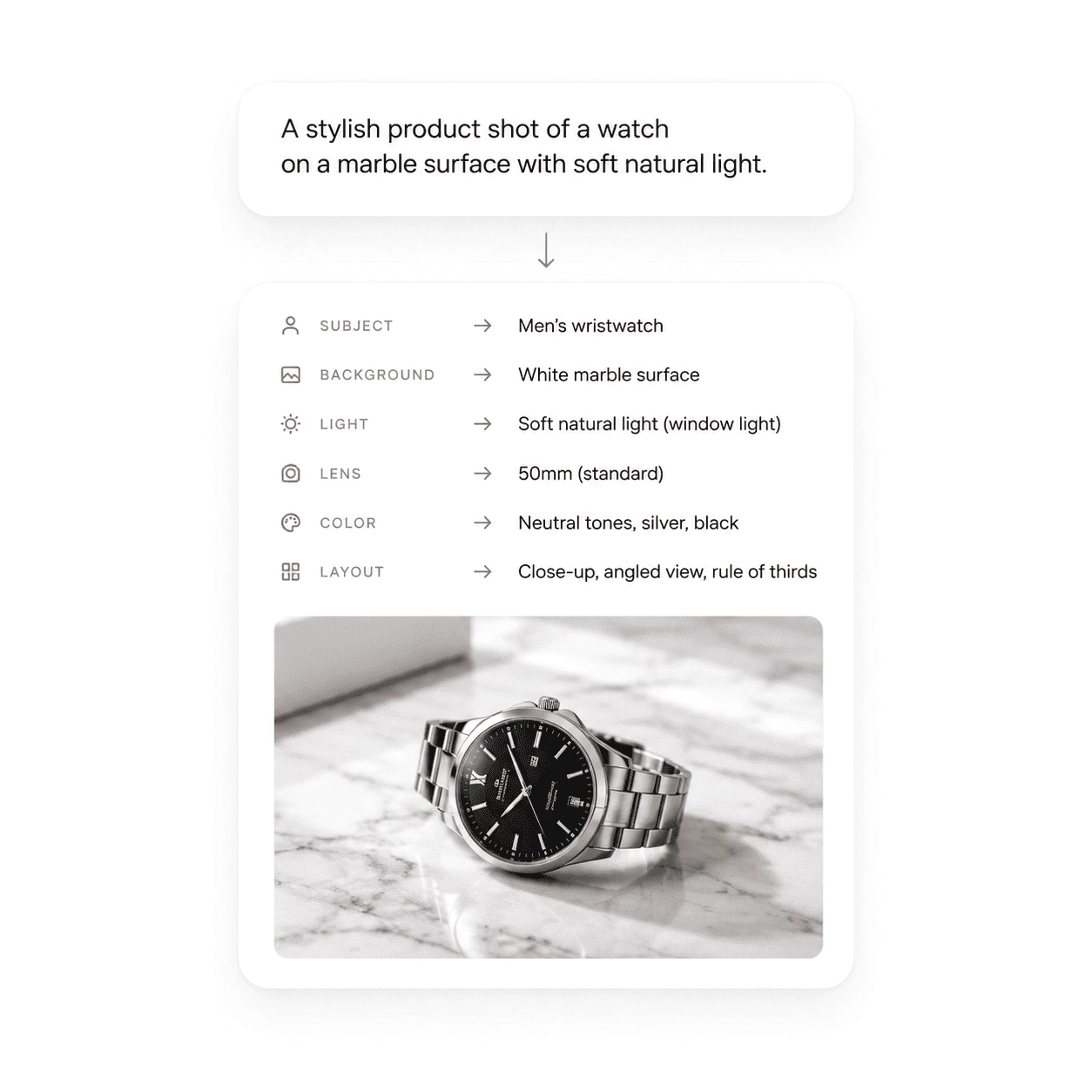
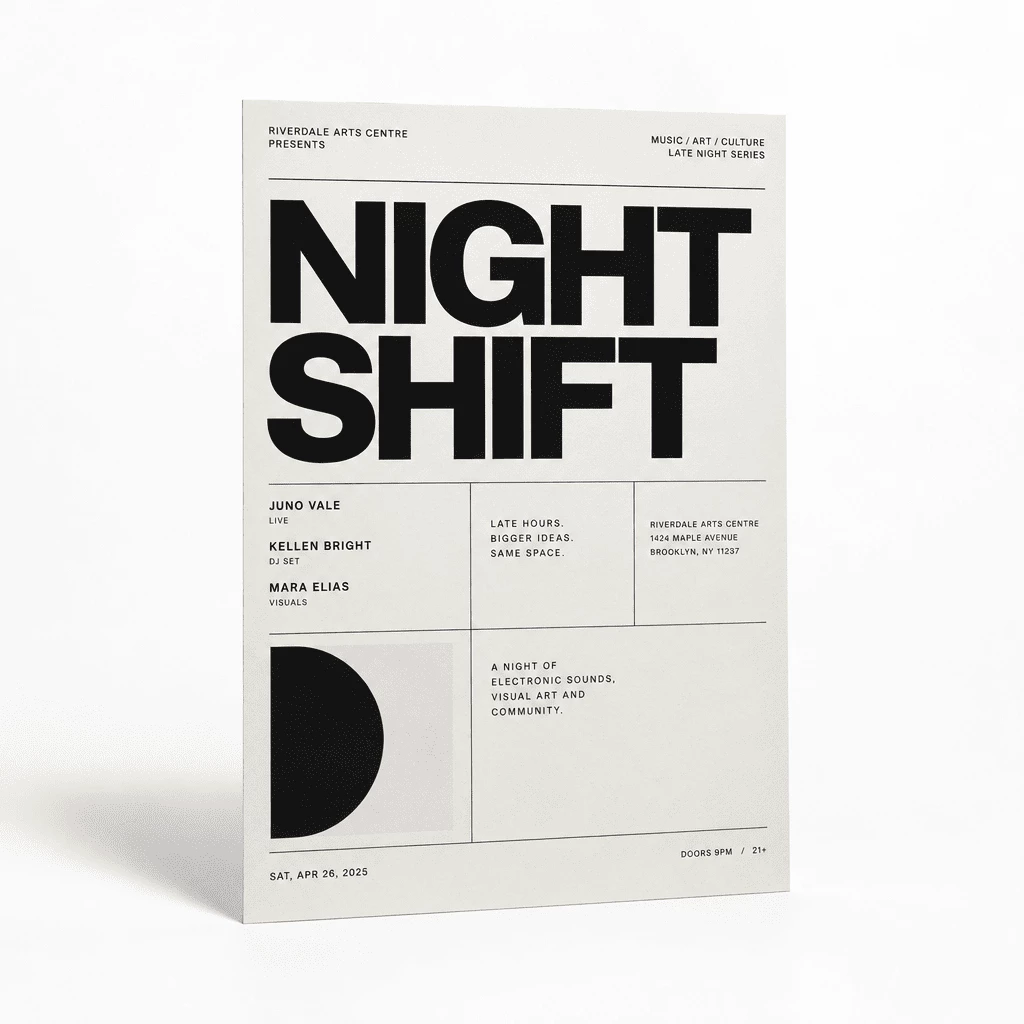
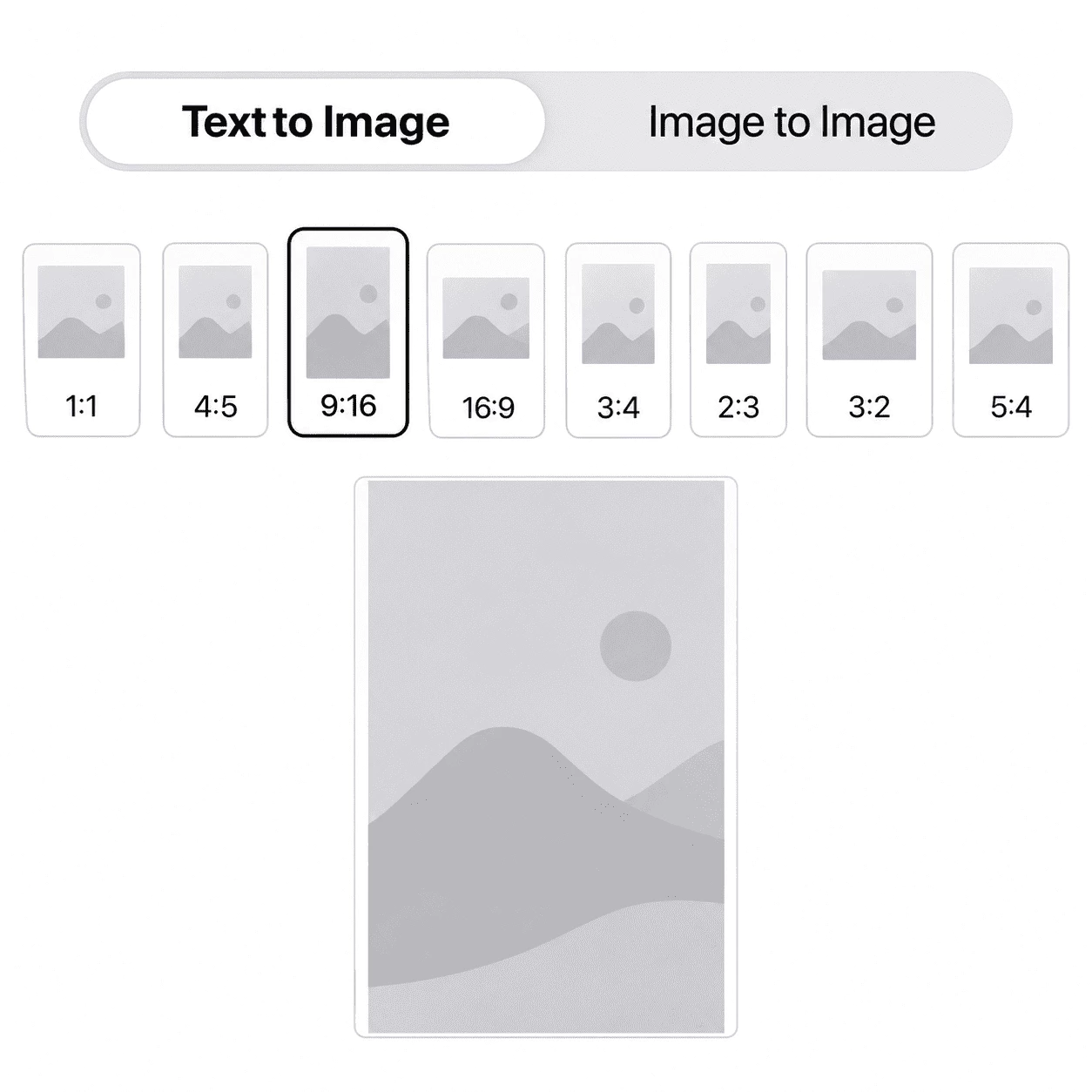
Image 2.6 Key Features
What Image 2.6 supports with words, uploads, sketch overlays, and the online editor:
Create From Text
Type what you want to see and Image 2.6 builds a fresh image from your description—subjects, lighting, layout, and any wording on the picture.
Edit Your Photos
Send a photo plus a short instruction. Add a transparent PNG markup layer so swaps, relights, and touch-ups focus on the area you marked.
Built for Posters and Products
Pack shots, shelf photos, and poster layouts gain when markup circles the item or headline and your prompt names color, copy, and style.
Eight Aspect Ratios
Pick Auto, 1:1, 4:5, 3:4, 2:3, 9:16, 16:9, or 3:2 for output—and keep your markup layer the same size as the base image so guides stay aligned.
Template Briefs in the Editor
Draw rough boxes, color swatches, or arrows on the overlay to show placement, tone, or motion. Pair those marks with a plain-language prompt before you generate.
Private History and Downloads
Each generation is stored in History. Download the result, run another pass with updated markup, or clear old uploads when you no longer need them.
Make Your First Image 2.6 Image
Three simple steps from idea to a finished picture in the editor:
Choose a Mode
Use text to image when you only have words, or image to image when you upload a photo. For local changes, plan to add a clear PNG markup layer on top of that photo.
Write Your Brief
Say what should appear, change, or stay the same. Optionally draw circles, arrows, or color marks on a transparent overlay that matches your image size, then attach it with your prompt.
Generate, Save, and Refine
Pick an aspect ratio and run Generate. Image 2.6 typically finishes within seconds to under a minute. Save the output, tweak your markup or wording, and run again—past runs stay in History.
Click here to get started
Ways to Use Image 2.6
See how teams pair short prompts with sketch overlays to fix posters, product photos, charts, and small edits in the right place.
Build Layout-Heavy Posters
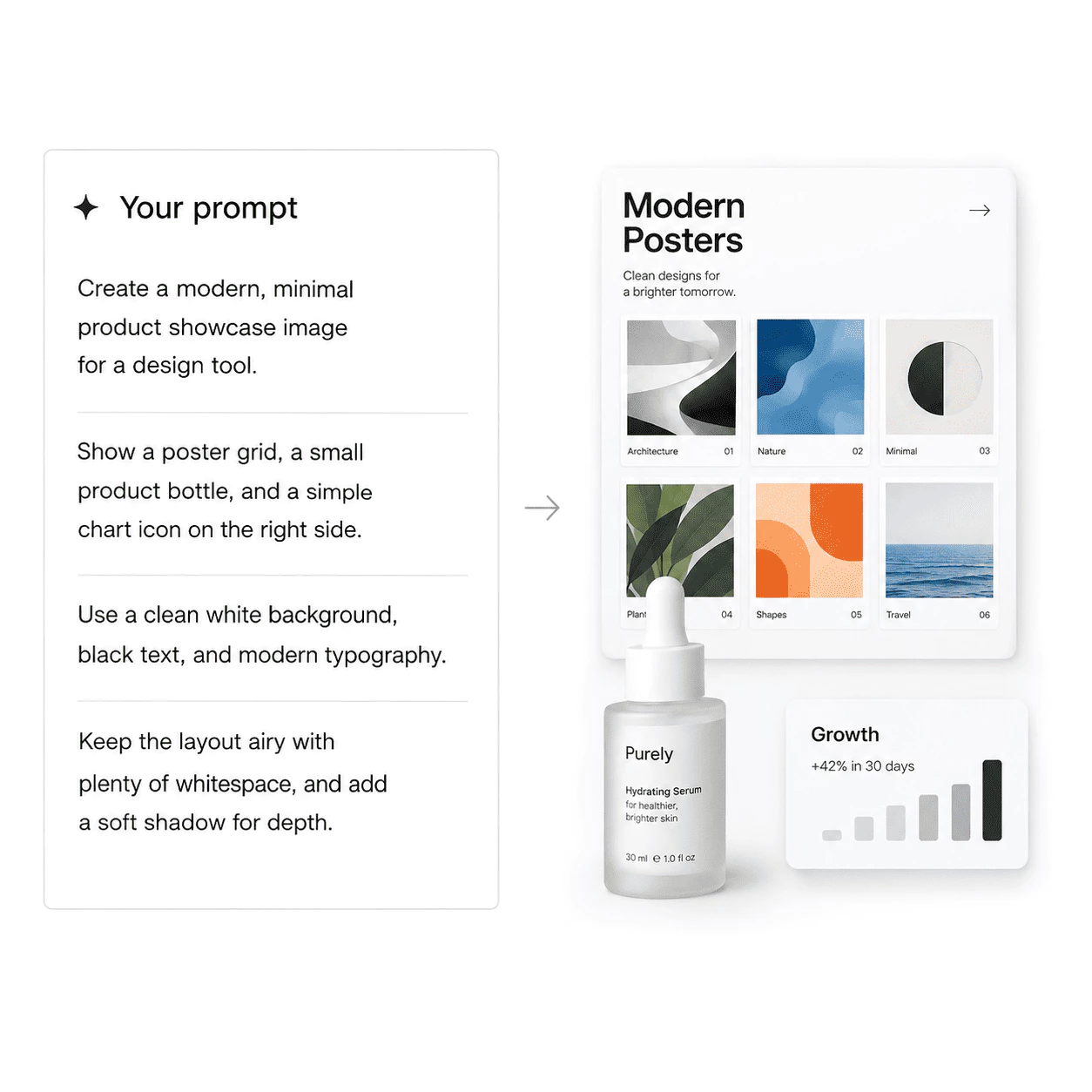
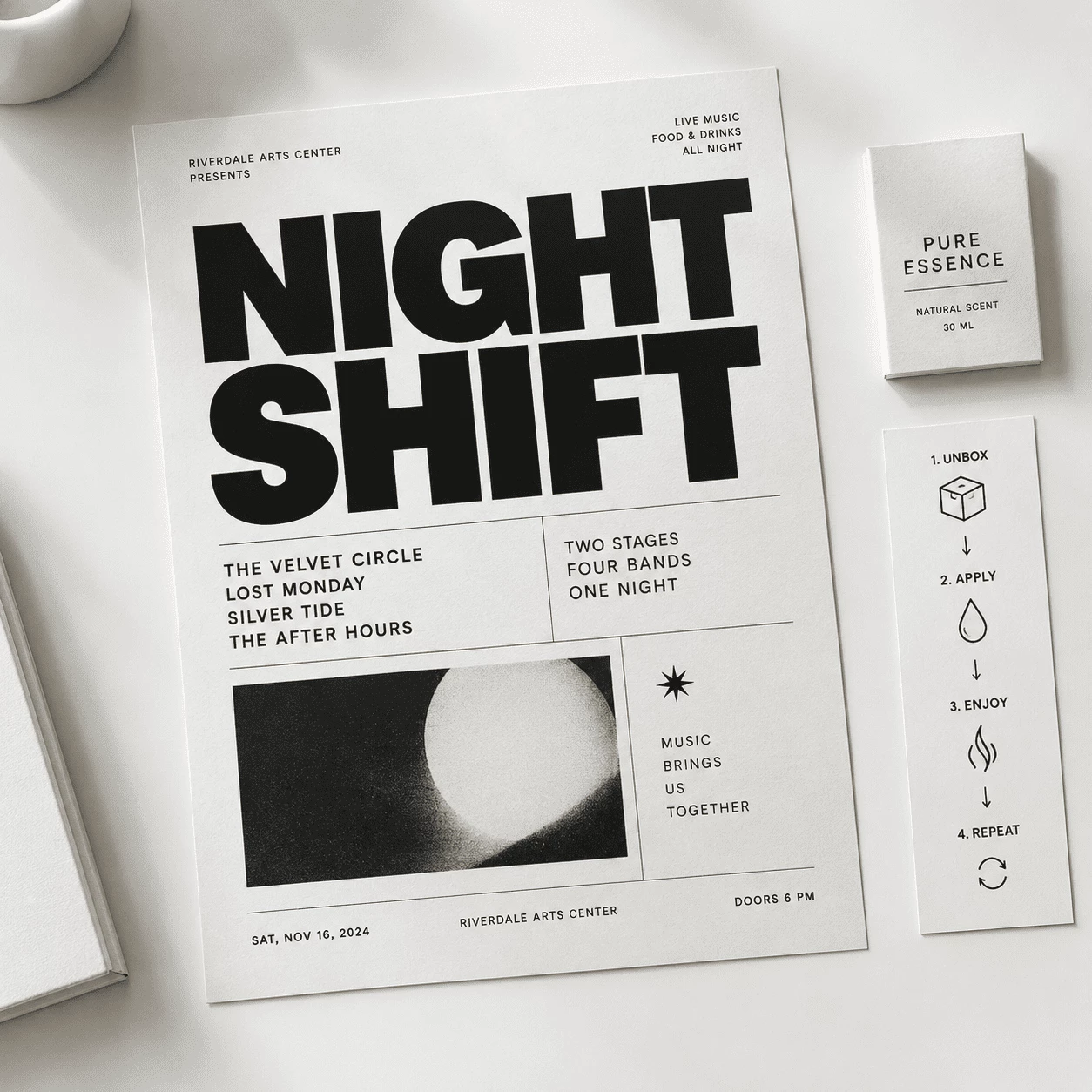
Upload a draft poster or start from text, then circle the headline or grid blocks on a clear PNG layer. Image 2.6 reads those marks plus your words so title, date, and type changes stay where you meant.
- Highlight the text block or logo zone on the overlay instead of long position instructions
- Choose a ratio for feeds or wide banners; keep markup the same size as the artwork
Light Bottles and Pack Shots
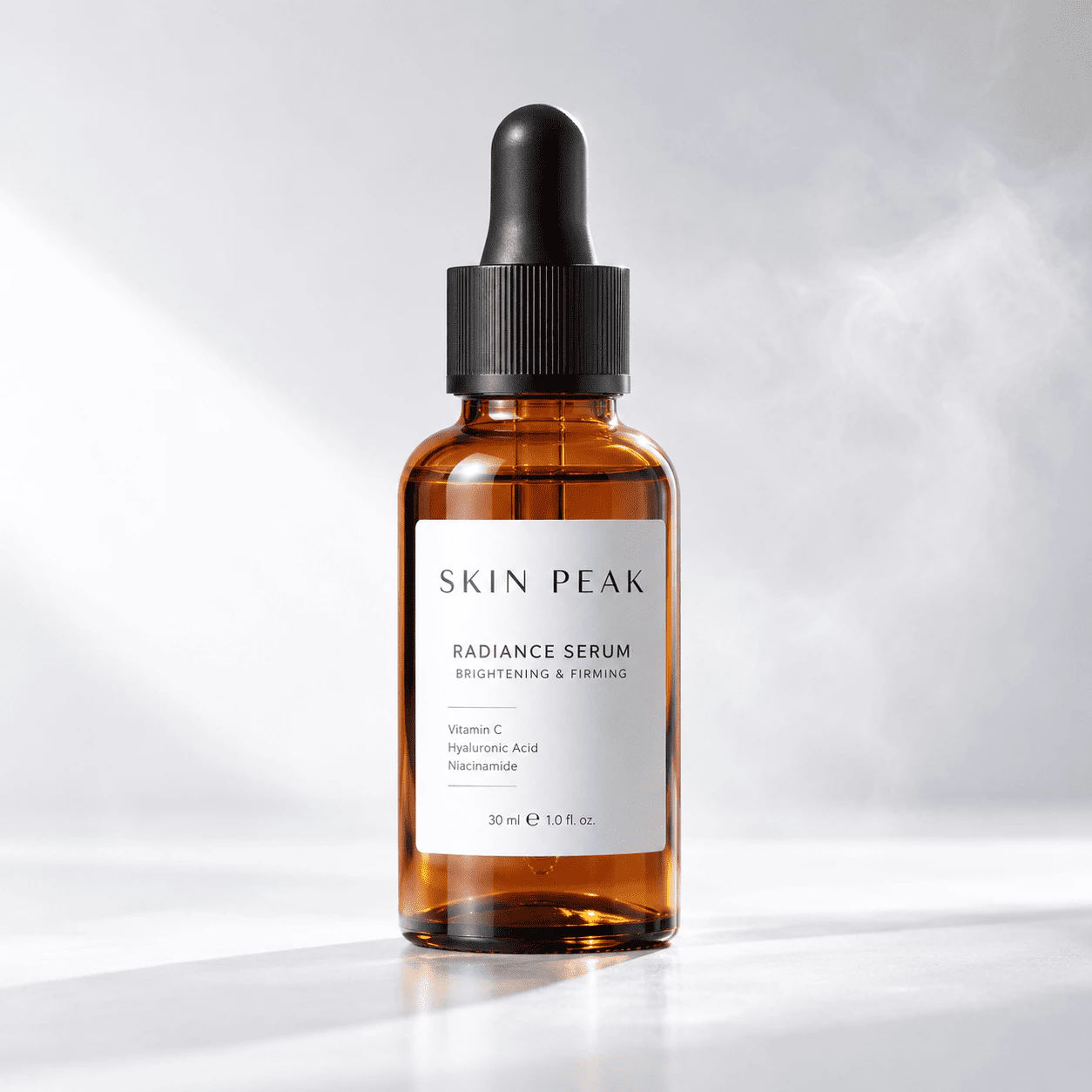
Begin with a bottle or pack photo and mark where light, label, or background should shift. Tell Image 2.6 the mood in plain language so glass, print, and reflections look deliberate for stores and ads.
- Sketch rim-light direction or a color swatch on the bottle where tone should change
- Export the shot for listings, decks, or social—tweak markup and rerun if one zone still needs work
Click here to get started
Image 2.6 – From Markup to Image
Image 2.6 focuses on one job: combine your words, an optional photo, and a clear sketch overlay to create or fix pictures for posters, products, charts, and spot edits.
Transparent Overlays
Mark the Edit First
Add a PNG layer with circles, arrows, or color blocks on top of your image. Image 2.6 reads where those marks sit so you do not fight with vague “move it left” instructions.
Text Still Leads
Changes That Stay Put
Your prompt names what to add, remove, or restyle while the overlay pins the zone. Poster type, pack labels, and chart callouts benefit when placement matters as much as wording.
Fast Runs
Ready to Share
Most jobs finish within seconds to about a minute. Choose a ratio for feeds or banners, download the file, and revisit earlier runs in History when you want another pass.
Image 2.6 – Common Questions
Quick answers about markup overlays, prompts, photo edits, downloads, aspect ratios, and your gallery.
What is Image 2.6?
Image 2.6 is an AI model for creating and editing pictures. It follows Image 2.5 in the same line and adds support for transparent PNG sketch layers on top of your photo, read together with your text prompt.
Can a chat app make Image 2.6 pictures for me?
A chat tool might help you draft wording, but it does not run Image 2.6 or store your renders. Open this editor to upload images, attach markup when needed, generate, and download from History.
How do I get started?
Choose text to image or image to image, write what you want, and add a matching-size clear PNG overlay if you need a precise zone. Pick a ratio, press Generate, then save or rerun from History with updated marks or text.
What uploads work best for edits?
Use sharp, evenly lit photos when you can. Say what must stay untouched. If you use markup, export a transparent PNG the same width and height as the base image so circles and arrows line up.
How is Image 2.6 different from a basic image app?
Image 2.6 is built for markup-guided changes: colored sketches and arrows carry placement and tone, not just a plain mask. That helps when text alone cannot pin an exact corner, label, or swap on posters and product shots.
What does each run output?
Each run typically returns one image at about one megapixel. Text to image builds from your prompt alone; image to image applies your instruction to your upload and can include a markup layer for local edits.